
Easily transcribe your Google Meet meetings with TranscribetoText.ai. Here’s a simple guide using the "AI Meeting Transcription via Link" feature.
Step-by-Step Guide AI Meeting Transcription:
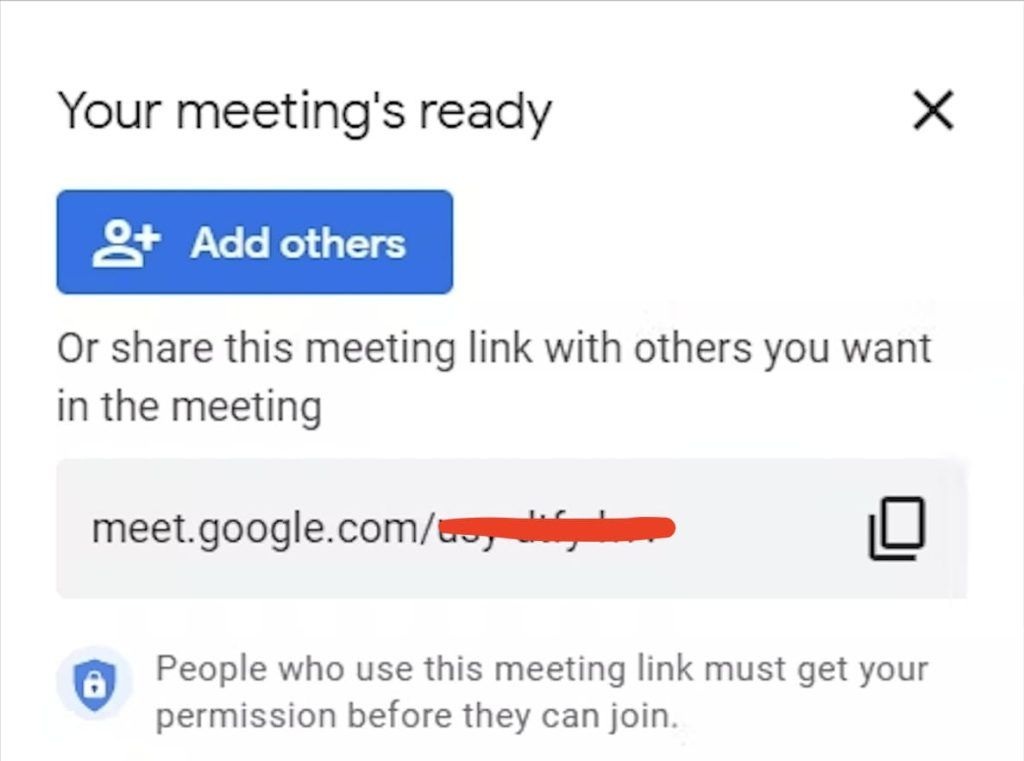
Step 1: Get Your Google Meet Meeting Link
- Schedule or start a Google Meet session.
- Copy the meeting invite link:In the Google Meet interface, click Meeting Details (often displayed as a link icon or under the session name).
- Copy the invite link, which usually starts with https://meet.google.com/.
Step 2: Open the "Record Meeting" Feature
- Go to TranscribetoText.ai.
- Click on the "Record Meeting" option on the dashboard (as shown in the screenshot).
Step 3: Paste the Google Meet Link
- In the field labeled "Paste the meeting invite link here," paste the Google Meet link you copied earlier.
Step 4: Customize Your Settings
- Meeting Name (Optional): Add a name for the meeting (e.g., "Team Sync" or "Weekly Review") to organize your transcriptions.
- Transcription Language:The default language is English.
- To transcribe or translate into another language, click "Select language" and choose from the dropdown menu.
- Enable this setting to separate and identify individual speakers.
- Use the dropdown to specify the number of speakers in the meeting to improve accuracy.
Step 5: Start the Transcription
- Once everything is set, click the blue "Start Transcribe" button.
- The transcription process will begin, and you’ll receive a detailed, speaker-separated transcript.
Notes:
- Currently, only Google Meet meetings are supported.
- Ensure the meeting link is active and public so the transcription service can access it.
- The transcription results will be available in your dashboard for download or editing.
Why Use TranscribetoText.ai for Google Meet Transcriptions?
Time-Saving: Skip manual transcription and get ready-to-use text in minutes.
Accurate Transcriptions: Powered by advanced AI for precise results.
Speaker Separation: Easily follow who said what during the meeting.
Multi-Language Support: Transcribe meetings in over 30 languages.